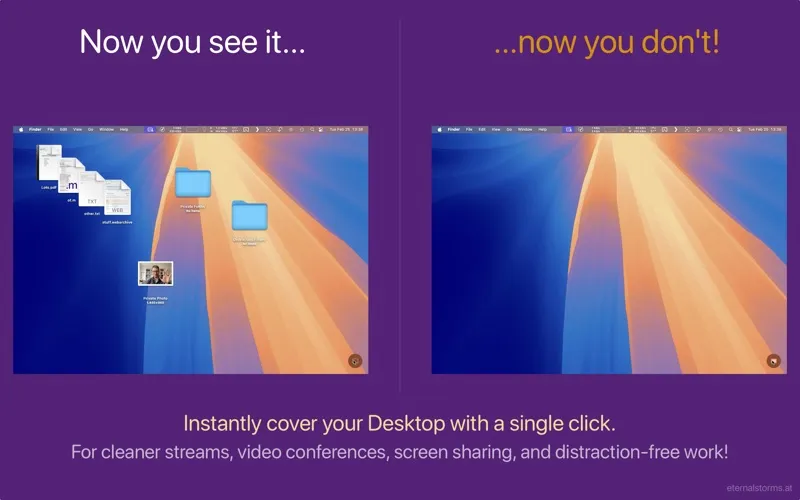
DeskMat hides desktop files, folders, and widgets with a single action, presenting a clean desktop surface suitable for screen sharing, video calls, and focused work. The app is designed to solve the common problem of cluttered desktops becoming visible during presentations or calls. ($3.99, one-time)
The core interaction is straightforward: a menu bar button or keyboard shortcut toggles visibility on the entire desktop or on individual displays independently. Items can be hidden globally or selectively — specific files, folders, or file types can be excluded from hiding, giving users control over what remains visible. When hidden, the desktop can display the current wallpaper, a solid color, a custom image, or a blurred wallpaper effect, making the transition unobtrusive.
DeskMat integrates with macOS Focus modes, activating automatically when a Focus is enabled — for example, hiding icons when a Presentation or Work Focus starts. Per-app triggers extend this to specific applications: launching a video conferencing app can automatically invoke the cover. AppleScript support enables custom automation workflows. Multiple display support allows hiding all connected desktops simultaneously or controlling each independently.
The app covers both files and widgets, addressing the full visual surface of the desktop. Version 1.3.1 introduced support for dynamic and shuffling wallpapers alongside existing static wallpaper coverage.
System requirements: macOS 13 Ventura or later; ~10.5 MB. Available in English, German, French, Italian, Spanish, Dutch, Japanese, and Simplified Chinese.
Pricing: ($3.99 one-time; 28-day free trial; also part of ESS Productivity Bundle with 20% discount)
Limitations: Hiding is cosmetic only — items are not moved or deleted and reappear when DeskMat is deactivated. No iOS companion or remote control. Requires macOS 13, excluding users on older systems.
Alternatives: HiDock (free) includes a basic desktop icon toggle. Overflow 3 manages desktop icons differently, organizing them into a launcher. Disabling desktop icons via macOS Sequoia’s built-in settings provides a free but less automated option.
Suitable for users who frequently share their screen in meetings or recordings and want a quick, automated way to present a clean desktop without manually organizing files.


