
PortKiller app icon

PortKiller

github.com

A lightweight menu bar utility that instantly terminates processes occupying development ports with a single click

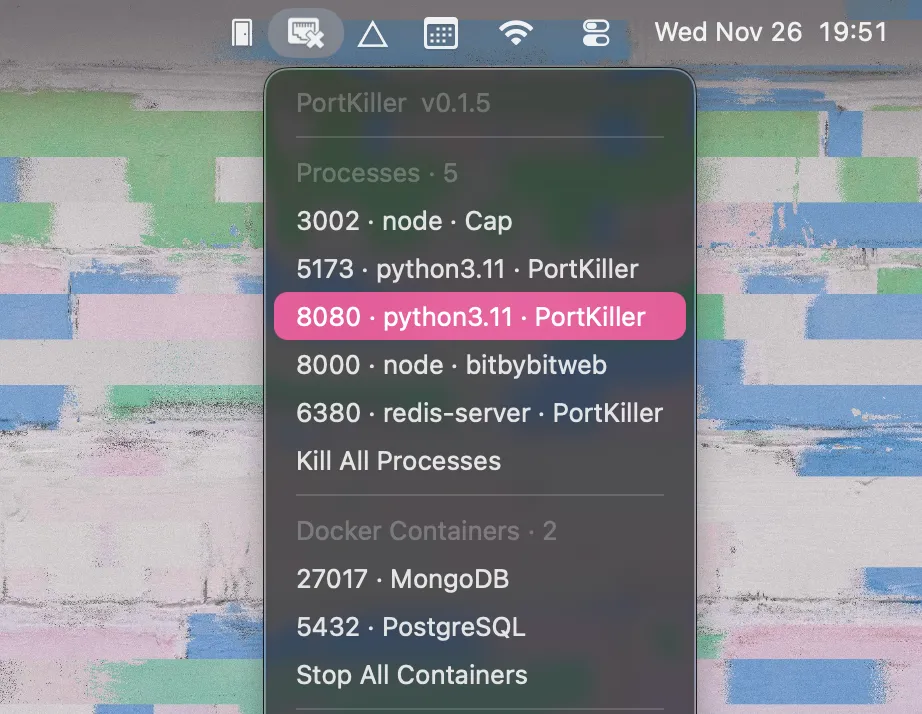
PortKiller screenshot showing the app interface

Anyone who develops web applications has encountered this frustration. You try to start your development server, and it throws an error because something is already using port 3000. Or port 8080. Or whatever port your framework defaults to. The usual fix involves opening Terminal, running lsof -ti:3000, copying the process ID, then running kill -9 on it. It’s not complicated, but it’s tedious enough to interrupt your flow every single time.

I recently discovered PortKiller while browsing GitHub, and it eliminates this entire workflow. This is a free, open-source Mac menu bar app that shows you exactly what’s running on your development ports and lets you kill those processes with a single click. No Terminal commands. No process IDs to copy. Just click and it’s done.

The app sits in your menu bar and monitors common development ports by default. When you click the icon, you see a list of active processes grouped into three categories: regular processes, Docker containers, and Homebrew services like PostgreSQL or Redis. Each process shows which port it’s using and, when possible, identifies the Git project it belongs to. This last detail is particularly useful when you’re juggling multiple projects and need to figure out which old server you forgot to shut down.

What makes PortKiller different from just memorizing a Terminal command is how it handles the kill process itself. The app sends SIGTERM first, giving processes a chance to shut down gracefully. Only if that fails does it escalate to SIGKILL. For something as simple as killing a port, this attention to doing it properly shows the developer actually understands how these things should work.

I’ve been using PortKiller on my Mac Mini M4 for the past few weeks, primarily when switching between React projects that all want port 3000. The app also sends desktop notifications when it detects new processes starting to listen on your monitored ports, which has helped me catch runaway background processes I didn’t even know were running.

The app is written in Rust, which explains its minimal resource footprint. Performance impact is negligible. I haven’t measured exact CPU or memory usage, but it’s light enough that I don’t notice it at all. The interface supports both dark and light modes, and the menu bar icon is small and unobtrusive.

PortKiller comes pre-configured for common development ports used by Node.js, React, Vite, Django, Flask, and MongoDB. If you work with something else, you can customize which ports it monitors through a JSON configuration file. The GitHub repository includes clear documentation for this, though I haven’t needed to modify the defaults yet.

System requirements are macOS 10.15 Catalina or later, with support for both Intel and Apple Silicon Macs. Installation is straightforward. Download the DMG from the GitHub releases page, drag the app to your Applications folder, and grant it the necessary permissions to monitor network activity. Current version is 0.1.5.

The app is licensed under MIT, meaning the source code is fully available on GitHub for anyone who wants to inspect it or contribute. Developer gupsammy appears to be actively maintaining it, with recent commits addressing bug fixes and feature requests. This is a one-person project, so expectations should be calibrated accordingly, but the core functionality is solid.

The Docker container detection is worth mentioning specifically. If you run containers locally for development databases or services, PortKiller can identify and manage those processes just as easily as native applications. This integration saves the step of opening Docker Desktop or running docker ps to find what you need to stop.

As a developer tool, PortKiller falls into the category of utilities you don’t appreciate until you have it. The problem it solves is small but frequent enough that automating it away makes a real difference. For developers who regularly work with multiple local servers or frequently switch between projects, this app eliminates a minor but persistent annoyance.

The main limitation is that PortKiller is specifically designed for development workflows. If you’re not a developer who runs local servers, you probably won’t have any use for it. The app also requires granting network monitoring permissions, which some users might be uncomfortable with, though the open-source nature means you can verify exactly what it’s doing if you’re concerned.

If you find yourself typing lsof and kill commands multiple times per day, PortKiller is worth installing. It’s free, it’s open source, and it does one thing well without trying to be anything more complicated than it needs to be.

Related Apps