
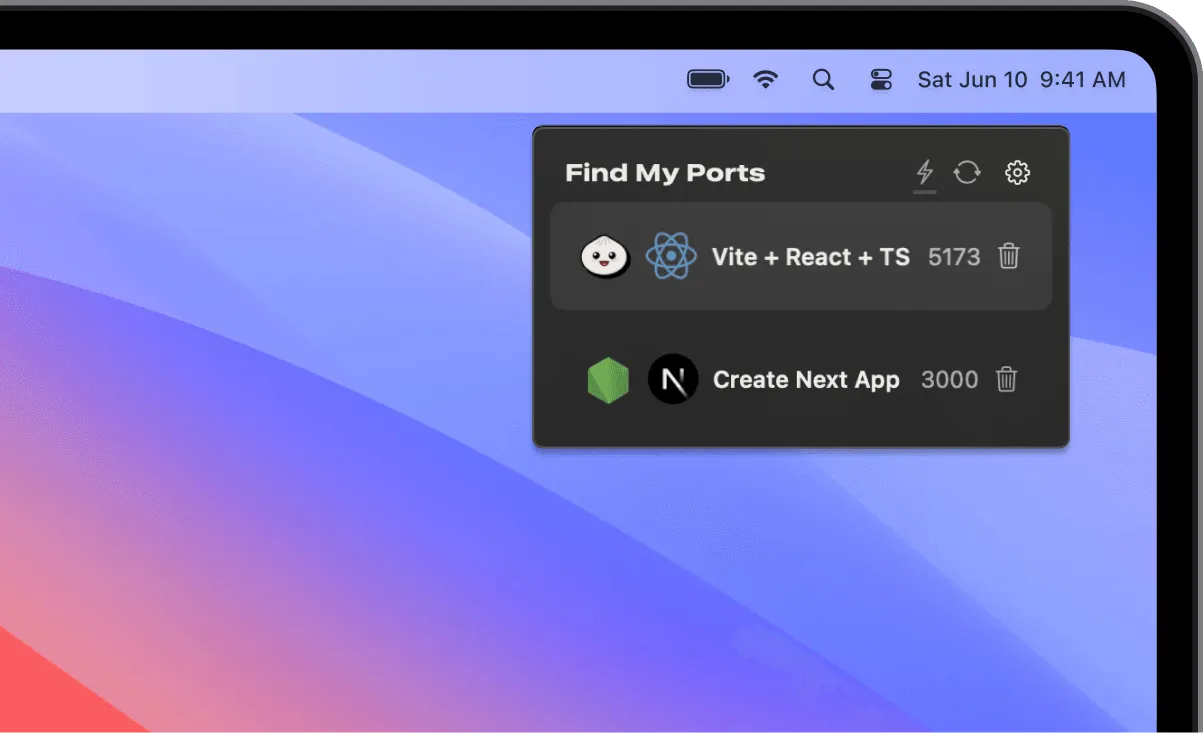
Find My Ports provides visibility into development server port usage directly from the macOS menu bar. Developed by BennyKok, the app addresses a common pain point in modern web development: tracking which ports are occupied and by which processes.
The app displays comprehensive process information beyond basic port occupancy. Users can view running processes, their CPU and RAM usage, and the Git branch for project-based processes. This detail level enables quick identification of what is running where without using Activity Monitor or terminal commands like lsof.
A distinguishing feature is Vercel integration. The app displays deployment status alongside local development servers, providing a unified view of local and remote environments. Users can monitor local server status and production deployment progress in one interface.
The interface follows macOS design conventions with automatic light and dark mode support. Port information uses color coding for different process types, distinguishing between web servers, databases, and other development tools.
Quick actions are available directly from the menu bar. Users can terminate stuck processes with one click or launch projects in their code editor. These shortcuts reduce context switching during development.
System requirements: macOS 14 or newer. The requirement ensures access to current system APIs for accurate process monitoring.
Pricing: Single machine license at $20, or extended license for three machines at $48. Available directly from the developer’s website.
Limitations: Functionality focuses specifically on development workflows. Users not running local servers or deploying to Vercel will find limited utility. The macOS 14+ requirement excludes older systems.
Alternatives: Activity Monitor (built-in, less specialized), lsof terminal commands (free, requires command-line knowledge), Sloth (GUI for lsof), ProcessSpy (general process monitoring).
Suitable for users working with modern web frameworks like Next.js, React, Vue, or Svelte who need visibility across their development pipeline and experience frequent port conflicts.


